 VoicePaste
Recognition models
Choose online or local recognition
- Online models require a network connection and your own API credentials. Audio is sent to the selected provider.
- Local models require an initial download, then recognize audio on your device. No API key is needed, but they use local memory and processing resources.
Compare languages, hotwords, and streaming in the compatibility list.
Configure an online model
- Open Settings → Audio Models → Online Models and select a provider.
- Get credentials using the Volcengine (Doubao) or ElevenLabs guide.
- Enter them in the model card, save, and enable the model.
- Record a sentence with a shortcut and check the result.
Fees, quotas, and data processing rules are set by the provider. Start with the default parameters and adjust only after recognition works.
Download and enable a local model
- Open Settings → Audio Models → Local Models.
- Choose a model for your language and device resources, then download it. Required voice activity detection (VAD) and punctuation components are prepared according to the model configuration.
- Wait for the download to finish, then enable the model.
- Complete a voice input to verify it works.
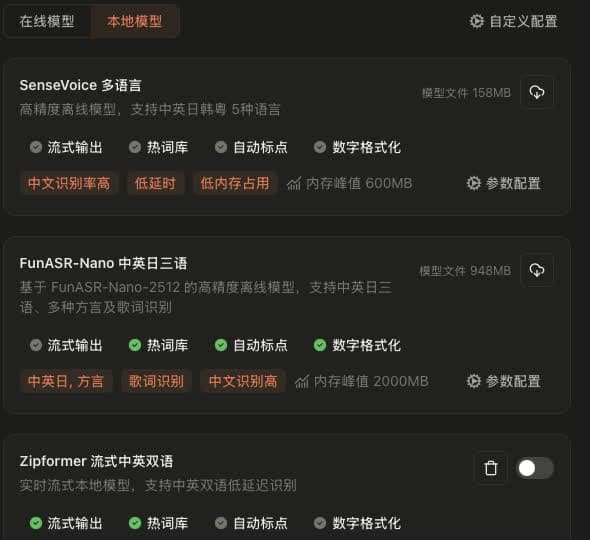
Adjust parameters
Adjust the model's parameter settings only when needed. Keep defaults if unsure. Use Custom Configuration when you need to tune local inference further.
Common questions
What if a local model download fails?
Check the connection and free disk space, then retry.
What if online recognition fails?
Check saved credentials, service activation, account quota, and the connection. For provider-specific checks, see Volcengine and ElevenLabs.
Why does live text look different across models?
Some models stream natively; others use the app's simulated preview. See the compatibility list.