 VoicePaste
Language models and templates
1. Configure a language model
Speech recognition turns audio into text. A language model translates, organizes, or polishes that text. It is optional for plain transcription.
- Open Settings → Large Language Model and choose a provider.
- For an online service, enter your own API key. See the DeepSeek API guide for an example.
- Set the endpoint and model name as required by the provider. Start with app defaults for presets. Custom services need a compatible Chat Completions interface.
- Template requests use the single currently selected provider.
For Ollama, install and run it locally and download a language model first. Then select Ollama in VoicePaste and enter the installed model's name. The service address must point to the running instance.
2. Add a text template
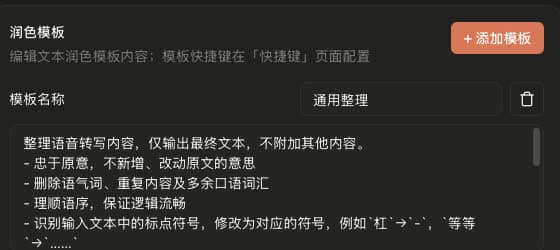
- In the Text Polishing section on the same page, add a template or choose one from the built-in prompts.
- Give it a recognizable name, such as “Translate to English.”
- Write a specific instruction, for example:
Translate the input into natural English. Preserve its meaning and output only the translation.
3. Bind and use a shortcut
- Open Settings → Shortcuts and set the template's keys.
- Start recording in an input field and finish with that template's shortcut according to the current mode.
- Check that the result matches your instruction. See Shortcuts and input.
Common questions
What if recognition works but polishing fails?
Check the language provider's key, model name, endpoint, and quota separately. Recognition and polishing may use different providers.
What if the result includes explanations?
Ask for only the processed result in your prompt, then test a short sentence.
How can I keep all processing local?
Use both local recognition and a local language model, or use plain transcription without polishing.