 VoicePaste
Volcengine (Doubao speech)
This guide connects Doubao speech recognition to VoicePaste. It is not setup for the Doubao chat app or text-to-speech service.
These screenshots come from the earlier guide. Layouts may differ in the current version; follow the field names. Select an image to open it at full size.
1. Activate speech recognition
-
Sign in to service activation in the Doubao speech console.
-
In the current project, find Streaming Speech Recognition 2.0 and follow the activation steps.
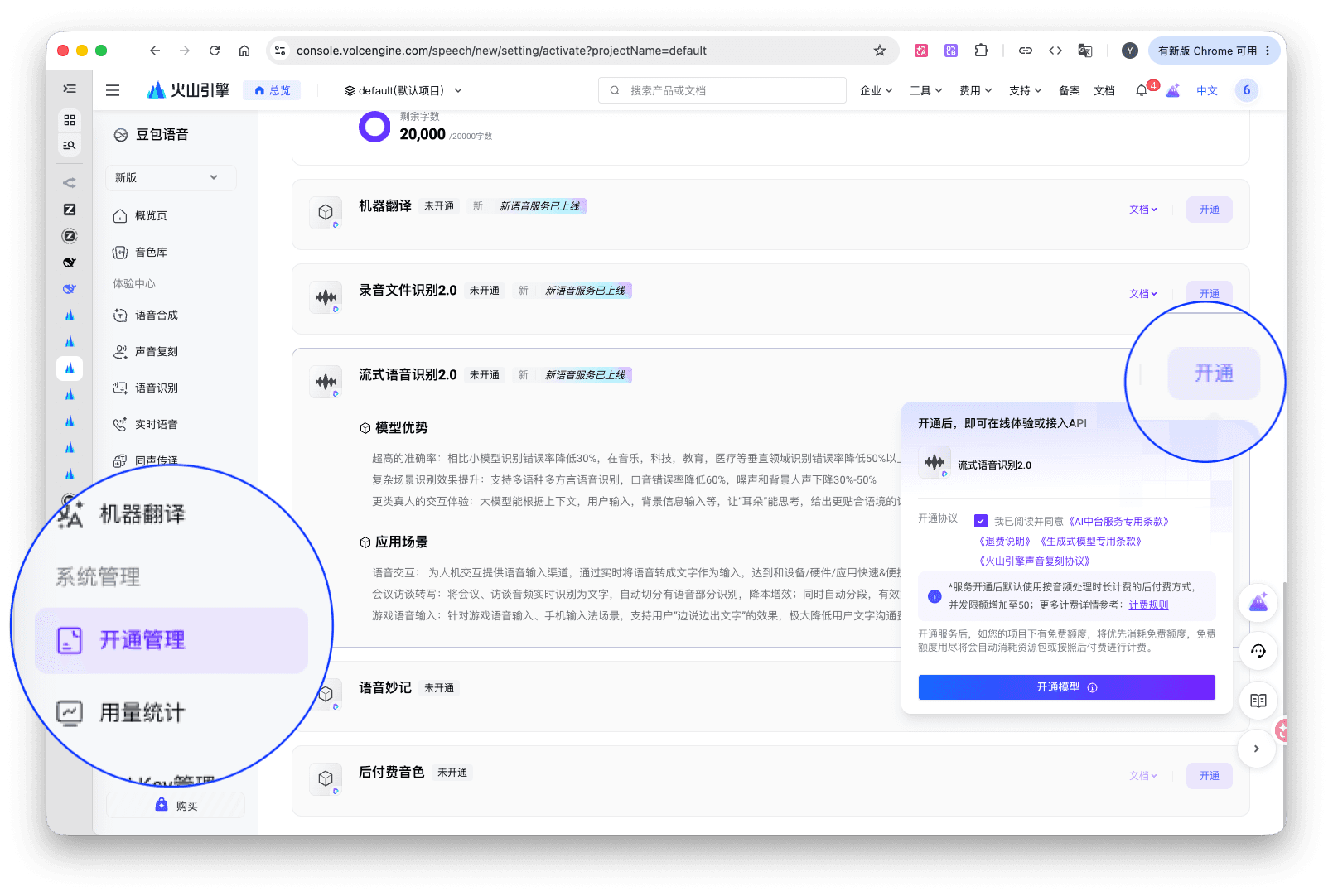
-
Check service status and available quota. The current console determines charges, trial allowance, and any required top-up.
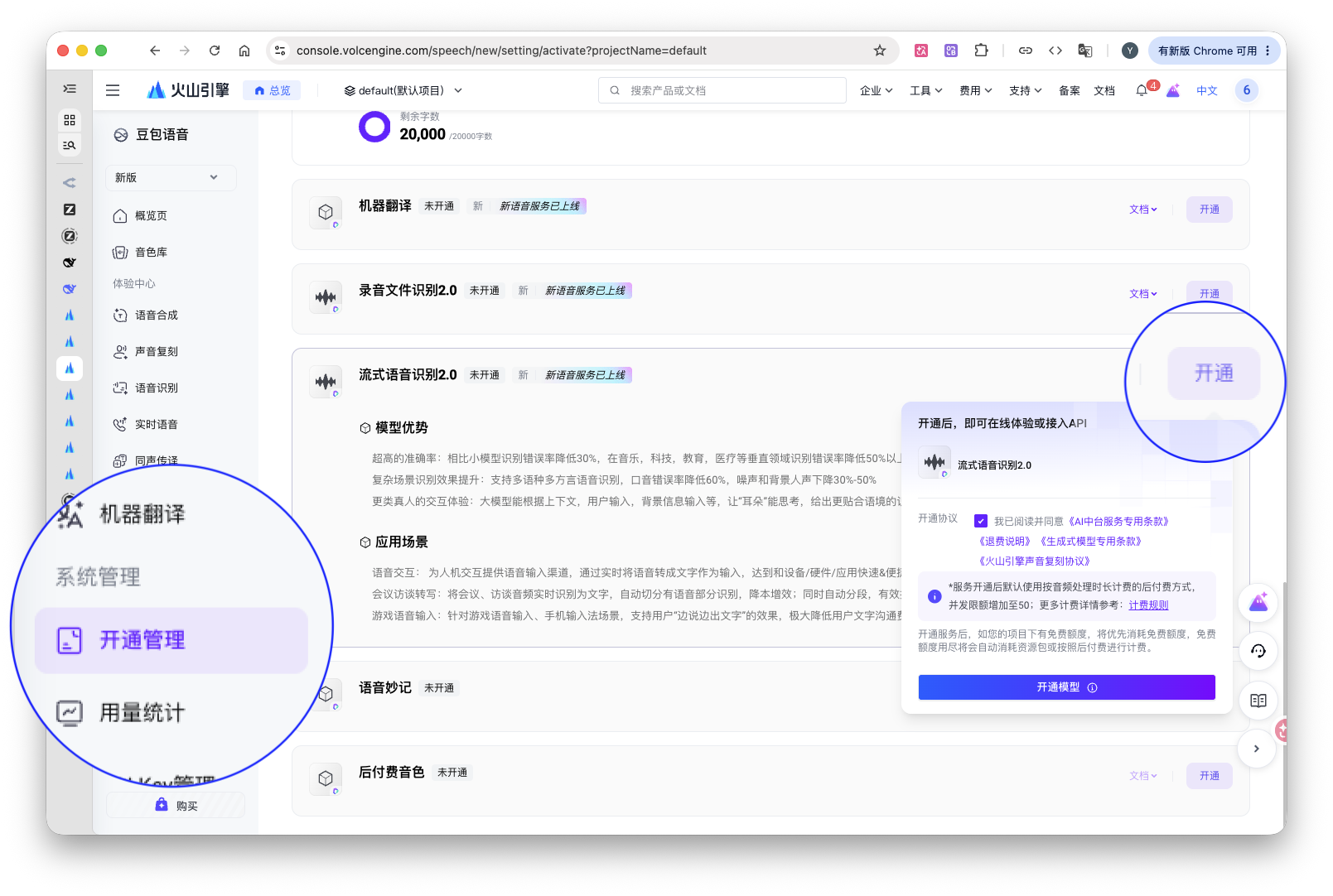
2. Create an API key
-
Open API Key management.
-
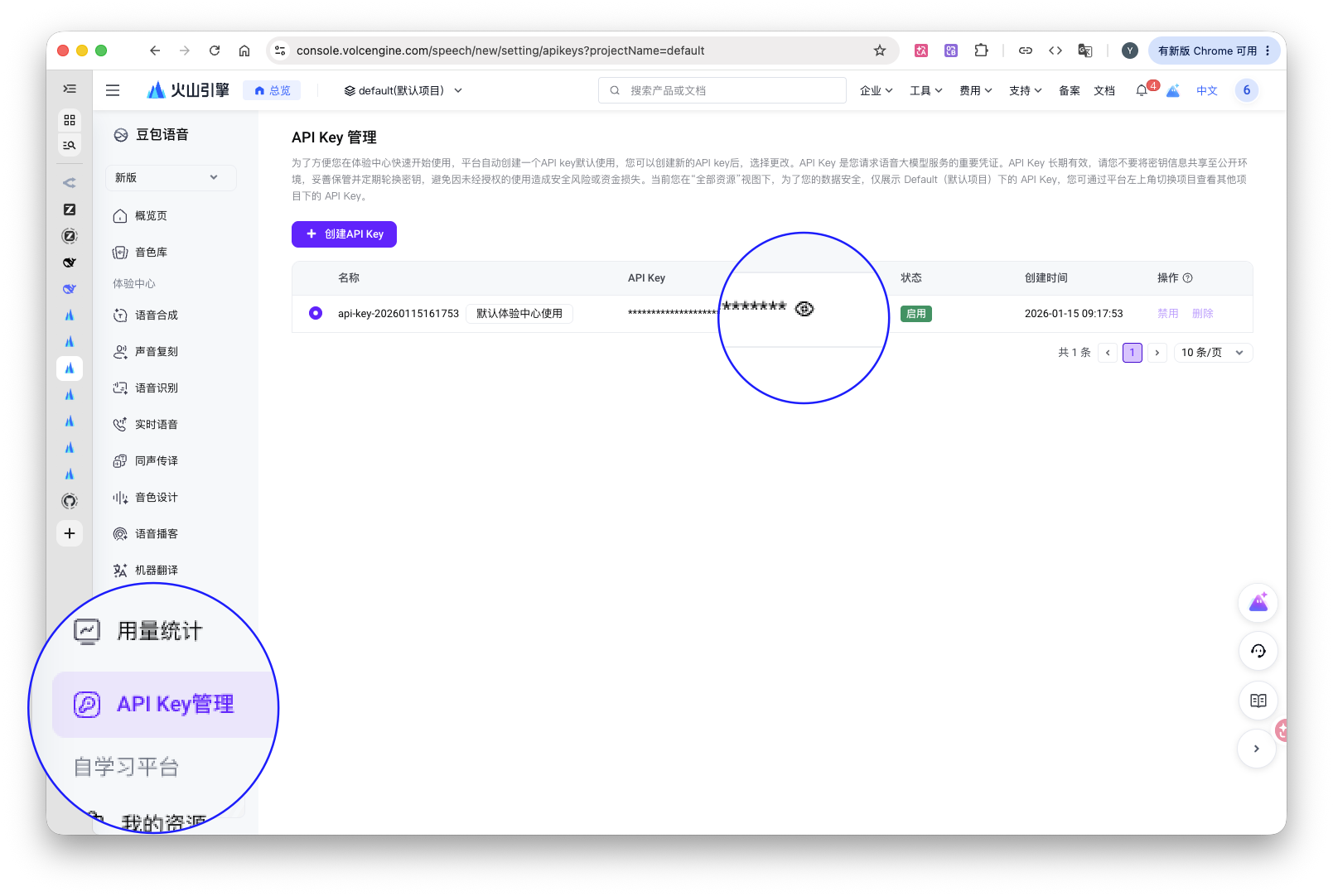
Select the same project where you activated the service, then create or retrieve a key.
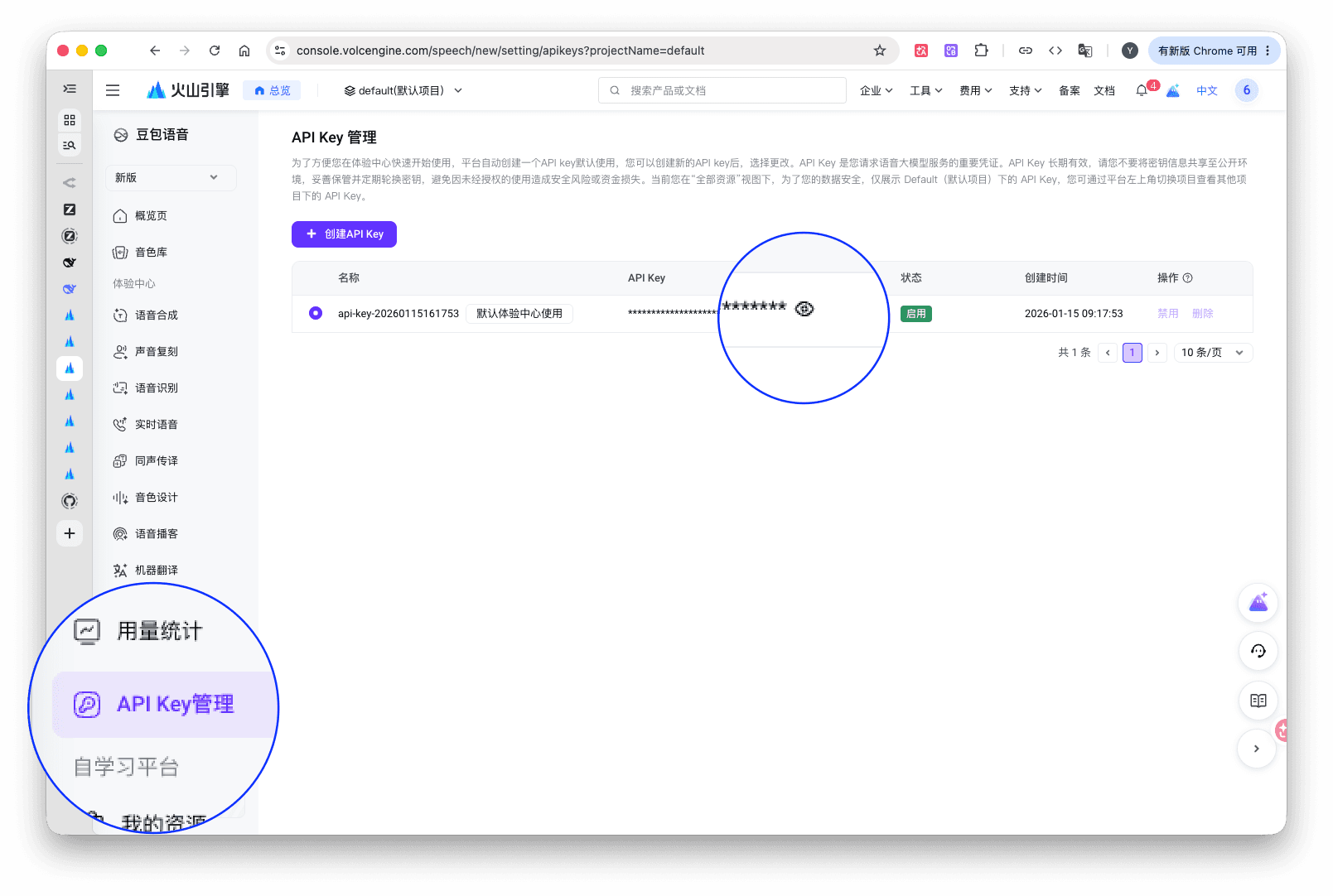
-
Store it for the next step. Keys and resources from different projects cannot be mixed.
3. Configure VoicePaste
-
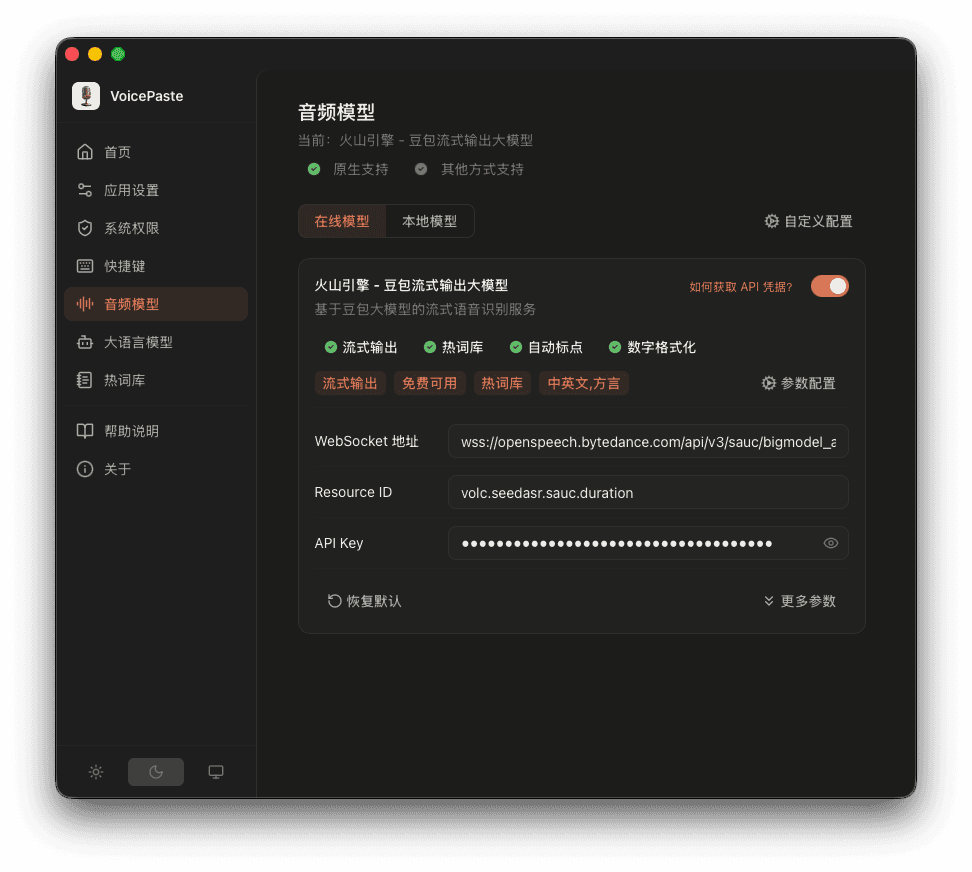
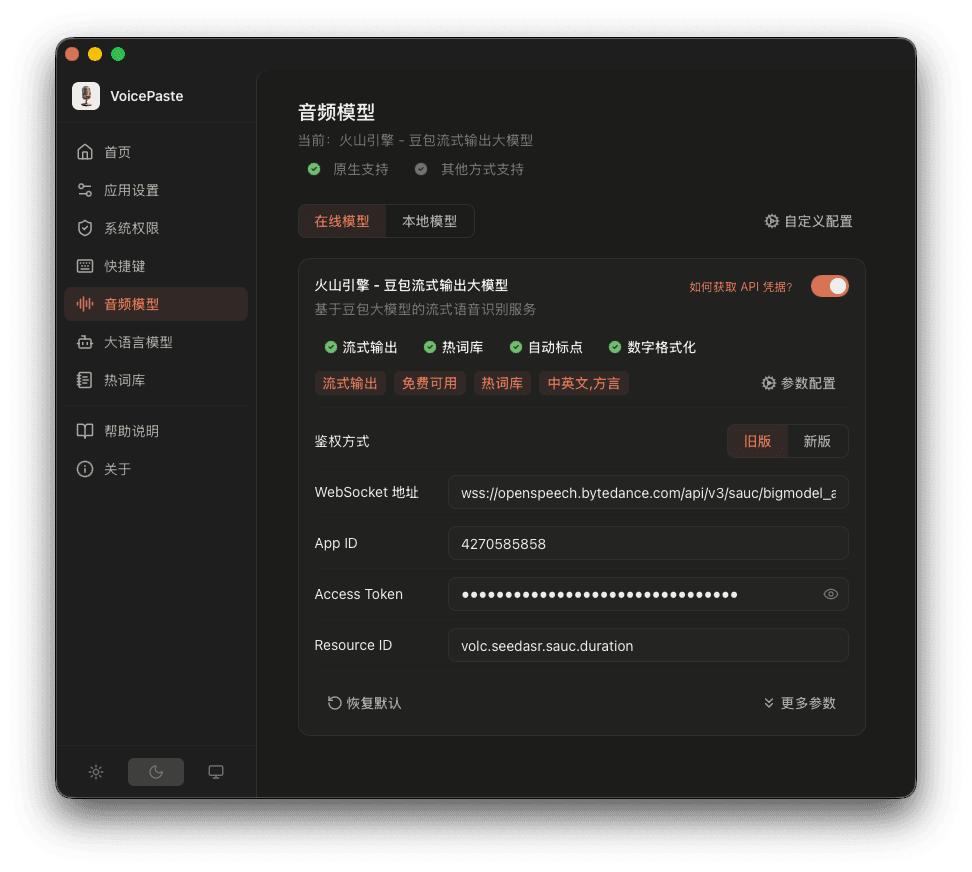
Open Settings → Audio Models → Online Models and find the Volcengine Doubao streaming recognizer.
-
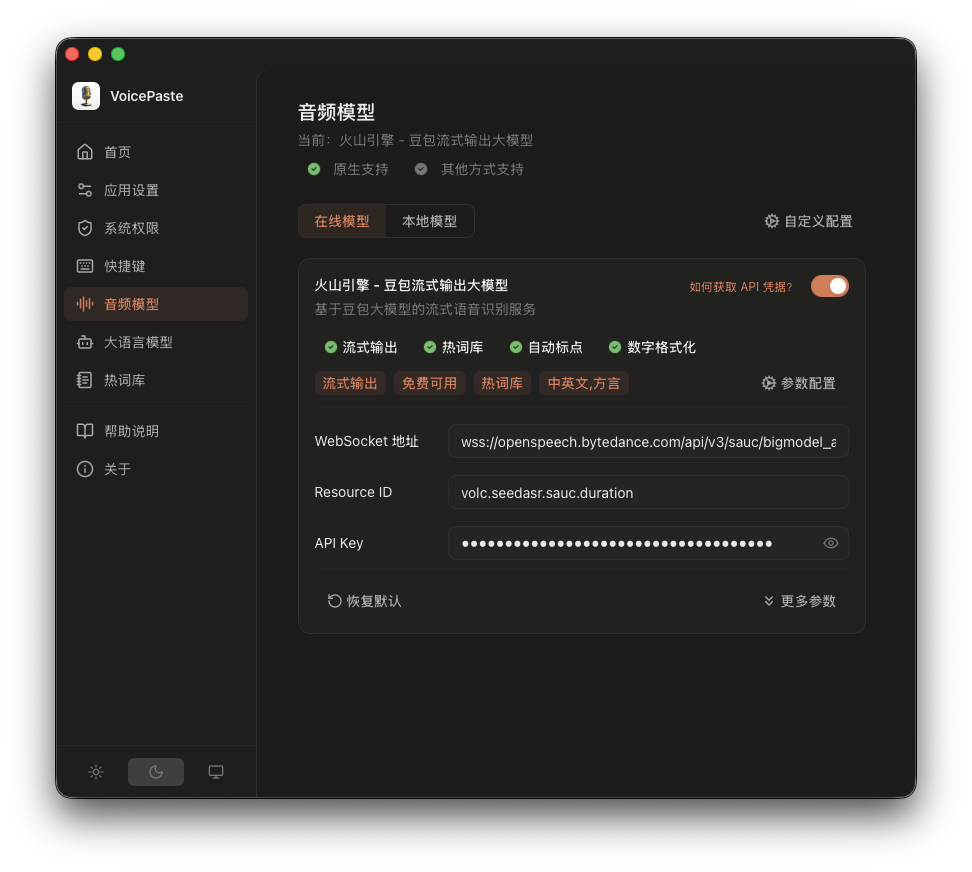
Enter the API key in its parameter settings. If legacy credentials already exist and the authentication selector is shown, choose the new mode.
-
Keep other defaults, save, and enable the model.
-
Record a sentence into an input field and check the output.
Existing legacy credentials
Existing accounts can use legacy App ID and Access Token credentials. New users should use the API key steps above; both credential sets are not required.
-
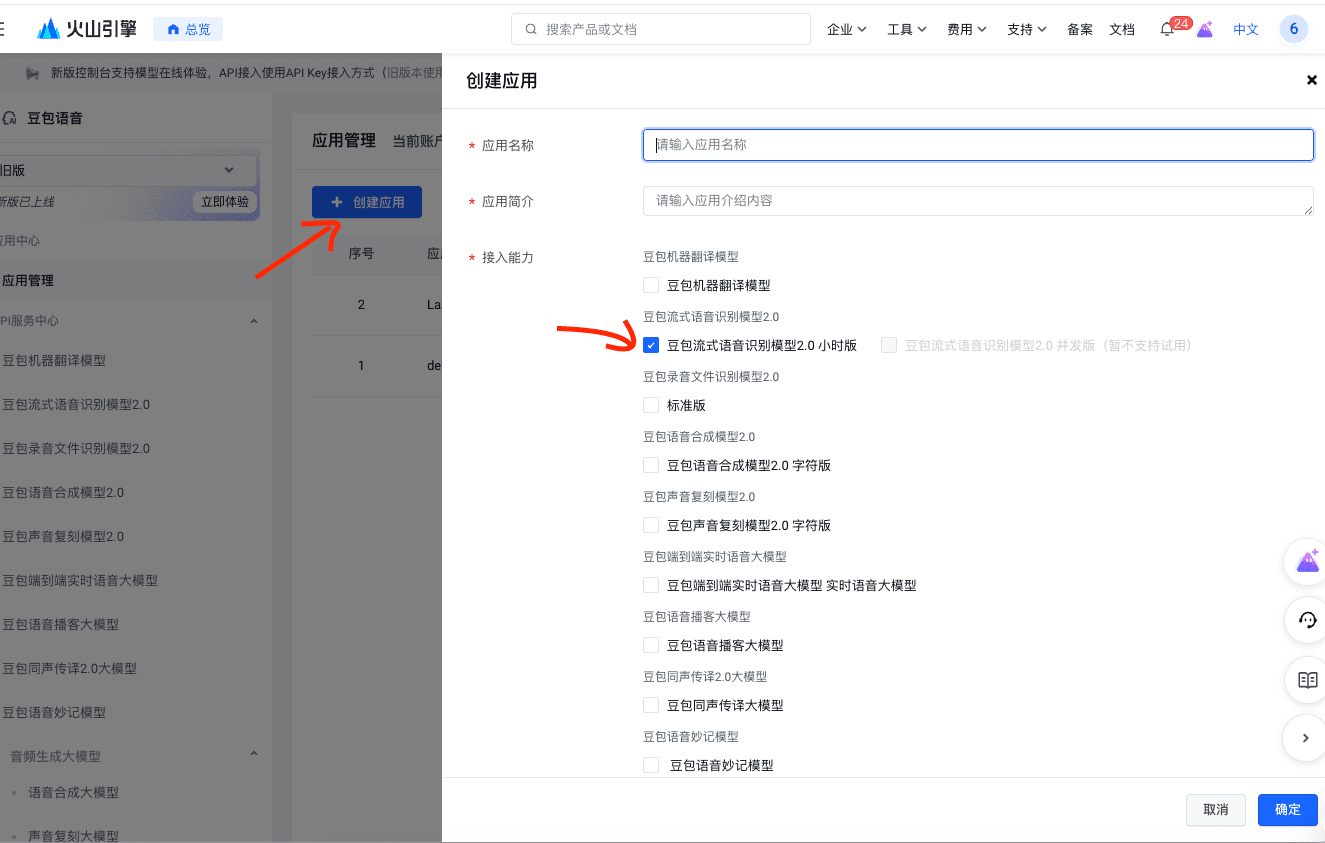
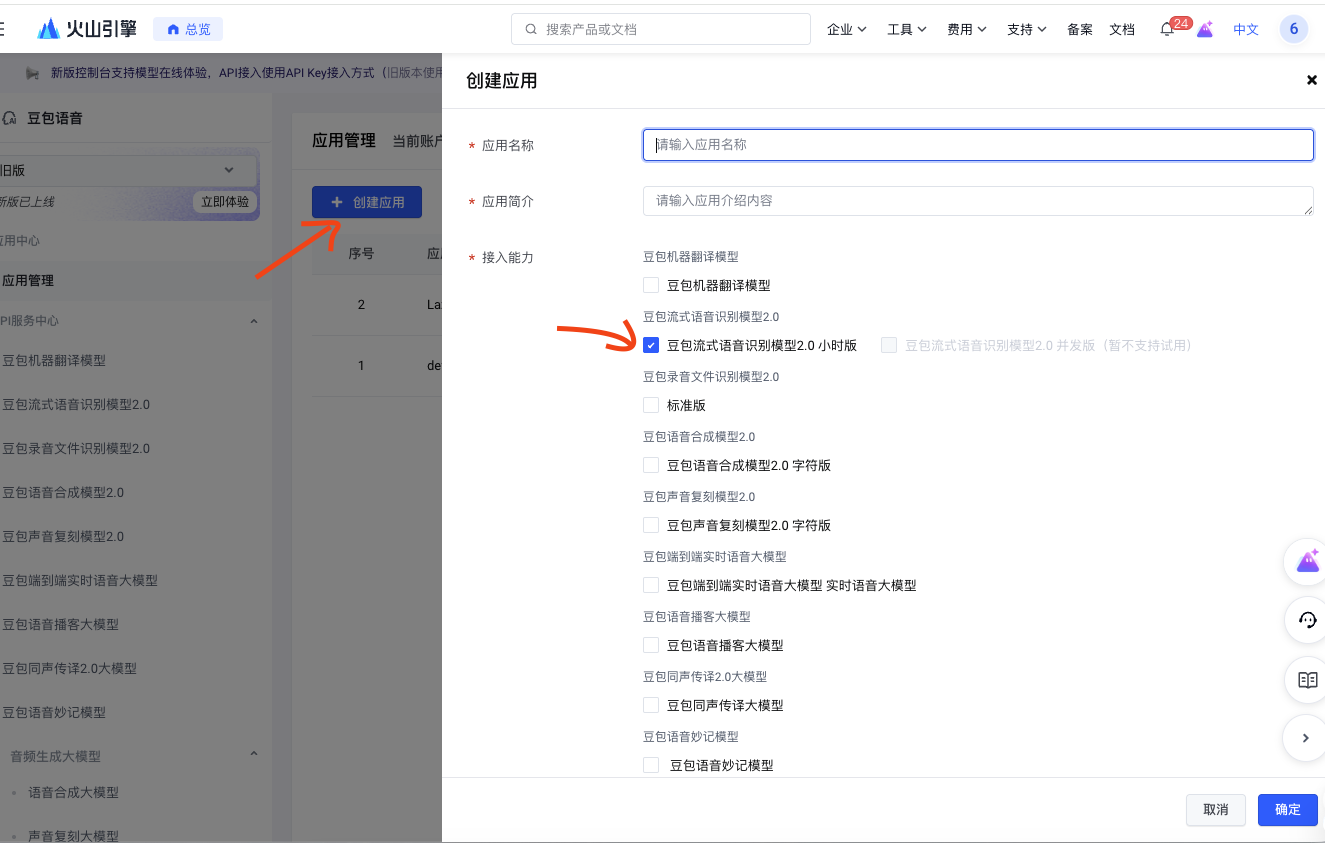
In the legacy Doubao speech console, create or select an app and choose Doubao Streaming ASR Model 2.0 (Hourly) as its capability.
-
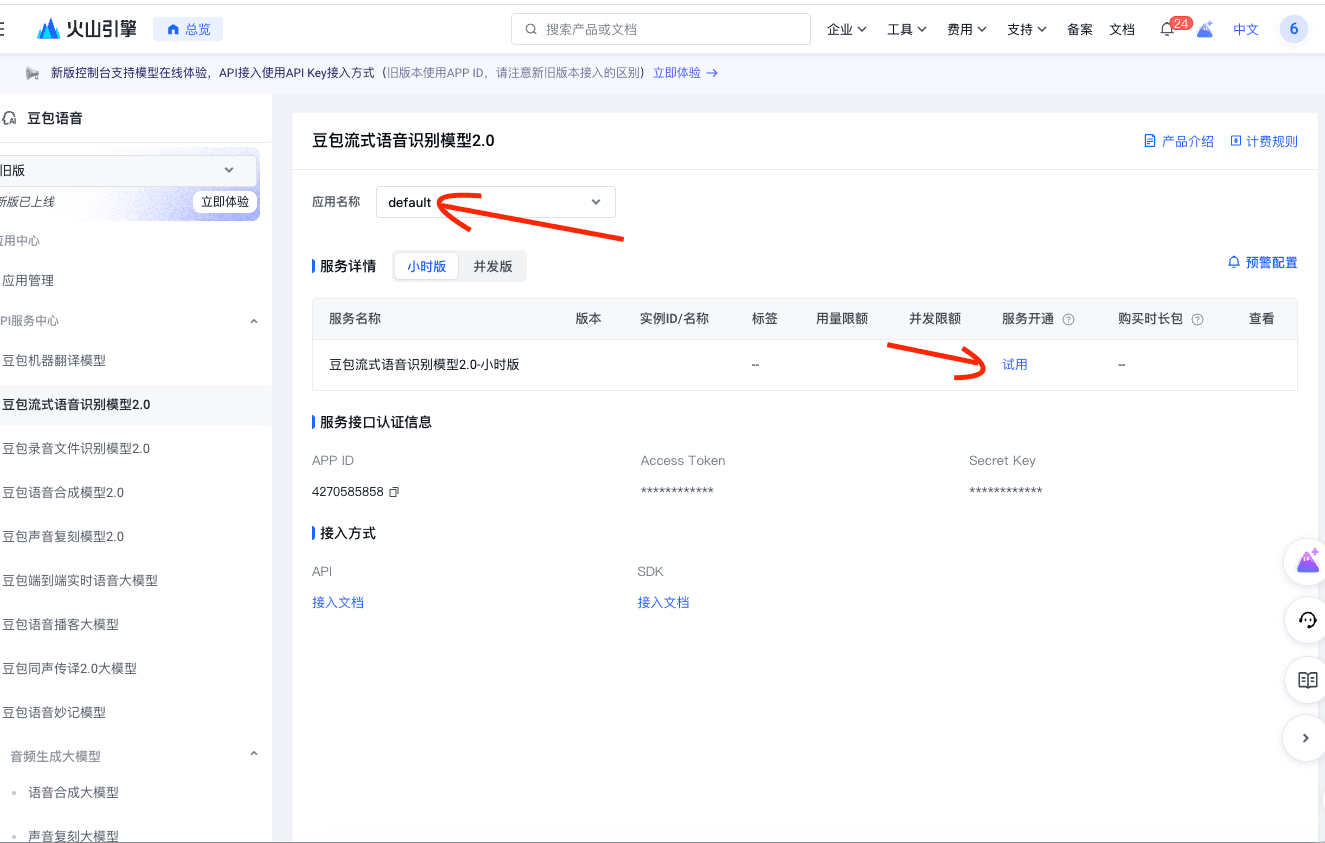
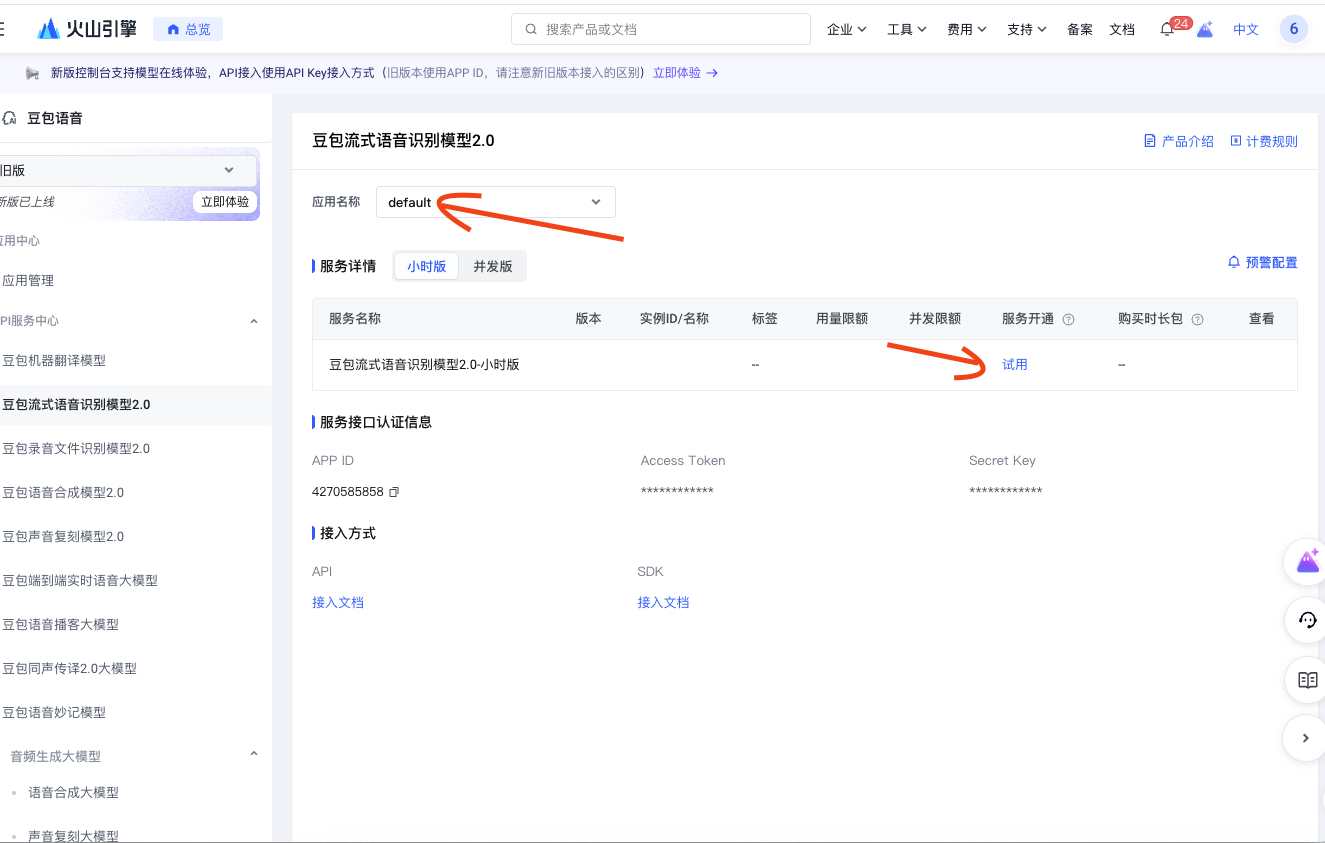
Open the model, select the app, activate the service, and retrieve its App ID and Access Token.
-
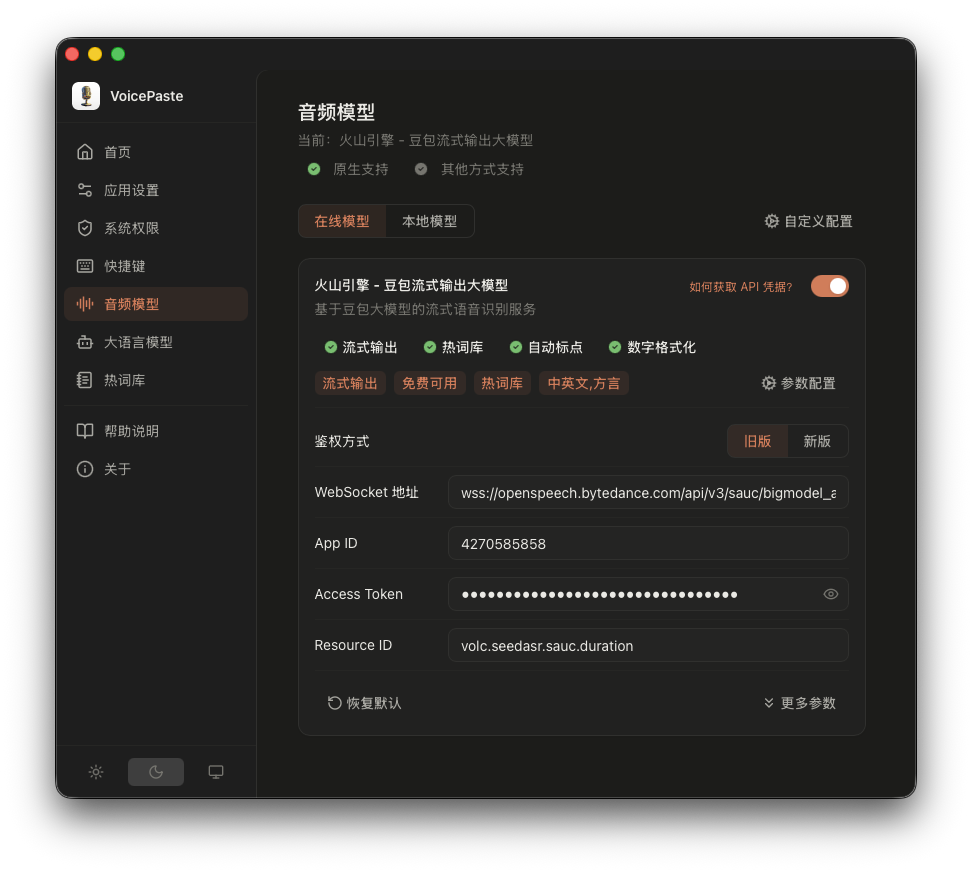
Choose legacy authentication in VoicePaste's model parameters, enter the corresponding credentials, and save.
Hotwords and advanced parameters
- Local hotwords: Create and enable a group under Hotwords.
- Online hotword table: Create one in Hotword management, then enter its ID in the model's hotword table field.
- Online replacement table: Create one in Replacement management, then enter its ID in the replacement table field.
- Other parameters: Adjust only after basic recognition works. Language and dialect support varies by API mode.
Common questions
What if the service is not active?
Return to service activation and check that Streaming Speech Recognition 2.0 is active in the current project.
What if the API key belongs to a different project?
Check that the key and recognition service belong to the same project. Keys and resources from different projects cannot be mixed.
What if authentication fails?
Check the complete credentials and matching authentication mode: an API key for the new mode, or App ID and Access Token for legacy mode. Do not include a full key in screenshots or error reports.
What if quota is insufficient or the connection fails?
Check account quota and service usage in the console, then check connectivity to the recognition service.
Official references: Console guide · Speech recognition API