 VoicePaste
ElevenLabs
VoicePaste uses ElevenLabs Scribe v2 Realtime for live speech recognition. These are speech-to-text API credentials, not text-to-speech settings.
These screenshots come from the earlier guide. Layouts may differ in the current version; follow the field names. Select an image to open it at full size.
1. Create an API key
-
Sign in to the ElevenLabs API Keys page.
-
Create a key with a recognizable name, such as
VoicePaste. -
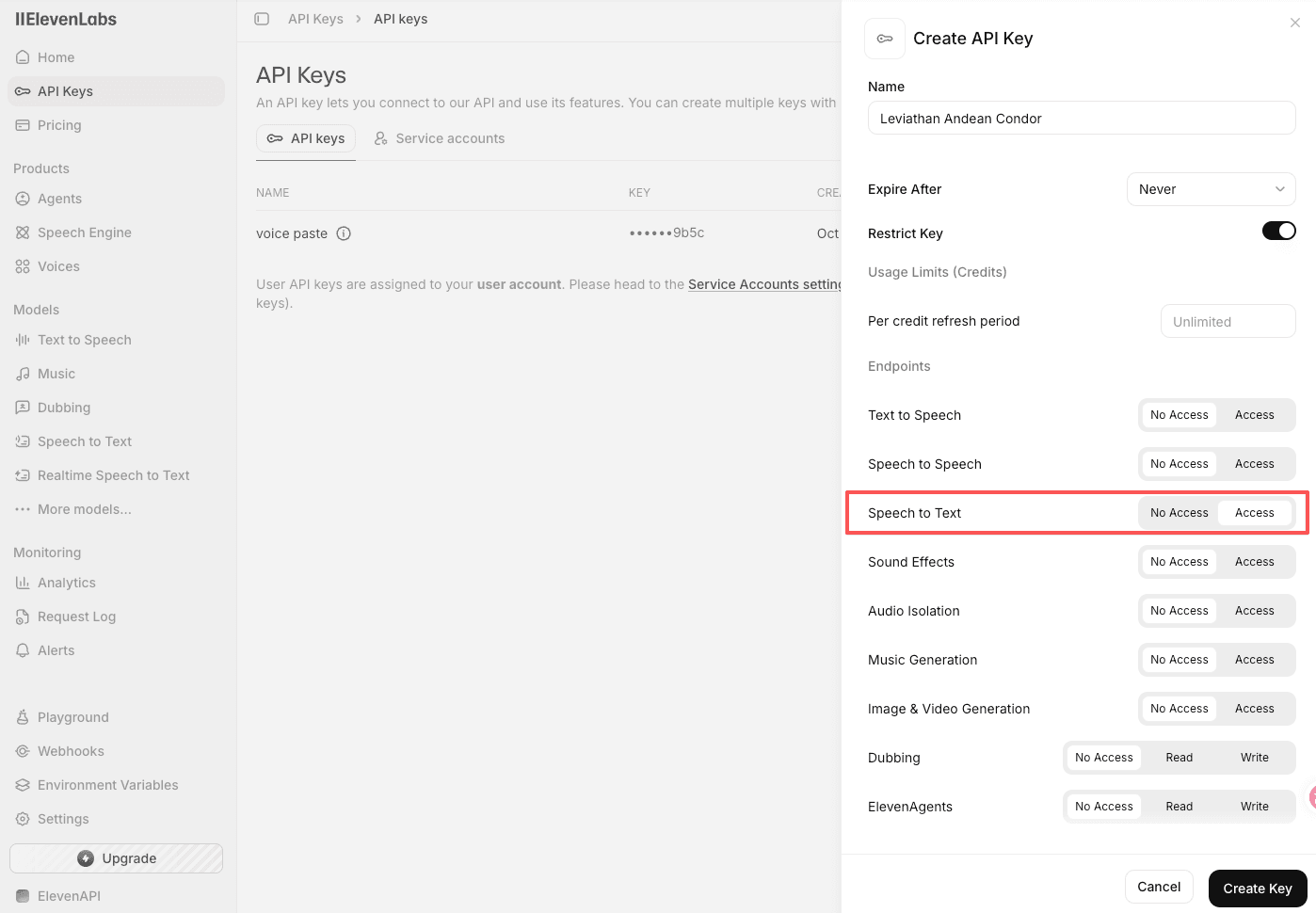
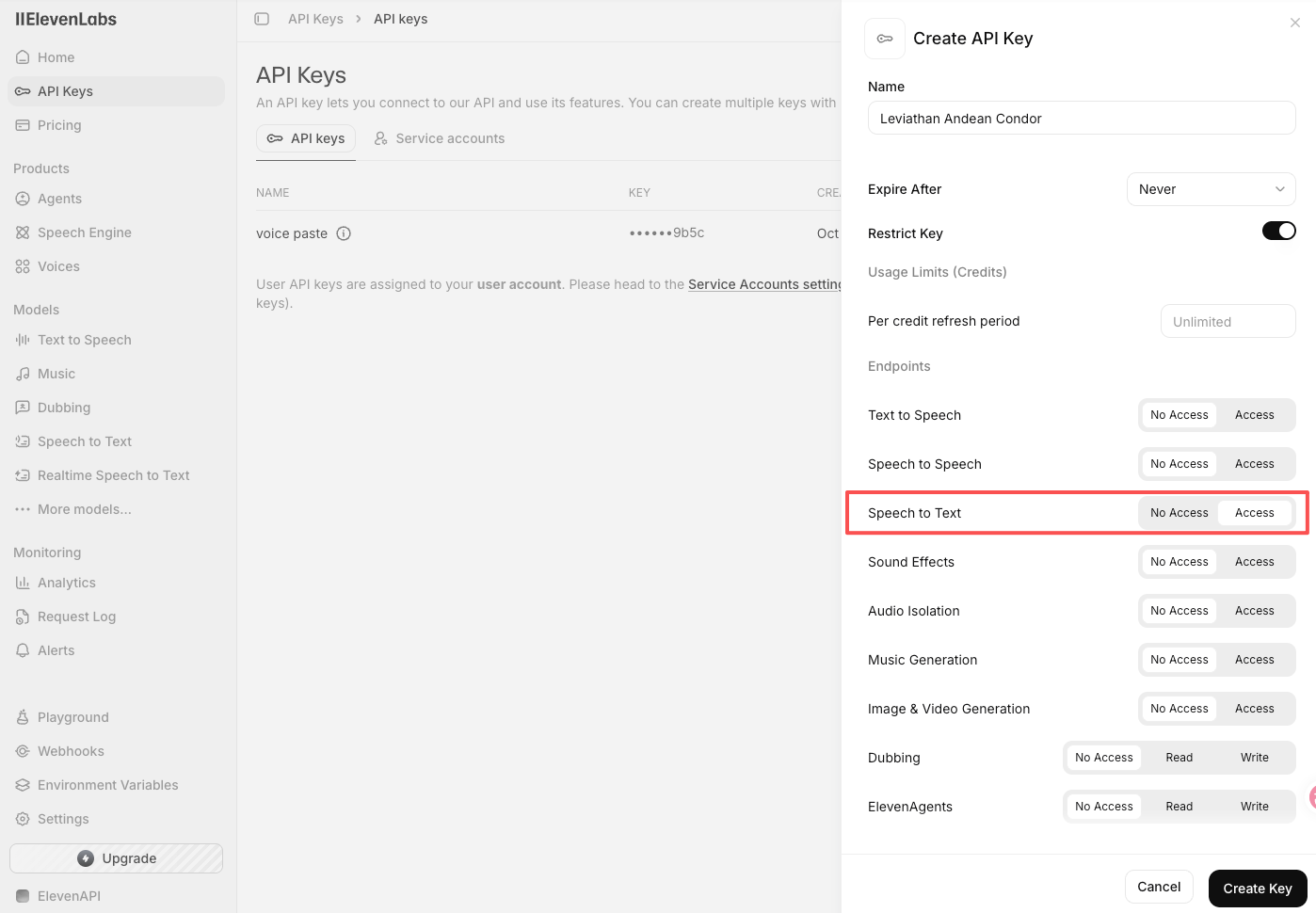
In the key permissions, set Speech to Text to Access.
-
Store the generated key and check that your account has available quota.
2. Configure VoicePaste
- Open Settings → Audio Models → Online Models.
- Find ElevenLabs - Scribe v2 Realtime, enter the API key, and save.
- Enable the model and keep its default parameters initially.
- Complete a voice input with a shortcut and check the recognized text.
3. Adjust recognition settings if needed
- Start with defaults for multilingual recognition, then adjust language options if needed.
- For names and technical terms, configure Hotwords and check that the model's hotword option is enabled.
- The text confirmation setting controls when recognition text is committed. Keep the default if unsure.
Common questions
What if the key is invalid or lacks permission?
Check the complete key and Speech to Text permission.
What if the account has insufficient quota?
Check usage and billing in ElevenLabs. Current official pricing applies.
What if the connection fails?
Check access to the service before changing advanced parameters.
Return to Recognition models · Official reference: Scribe v2 Realtime